Fragment Shader Backgrounds
Published Mar 13, 2026One way to add some visual flair to a web project is with a full-page animated background. We have the whole browser window to fill, so surely we can come up with something more imaginative than a flat coloured background.
You might have seen these around the web on some of the flashier websites, or in libraries like Vanta. I made something rudimentary along these lines back in 2017 for an older version of my personal blog.
The project, imaginatively called dots, was relatively simple: I drew some circles on a full page <canvas>, animated them around the screen, and gave each dot a connection to the three closest dots. I made some effort to make sure the dots and lines would wrap from one edge of the screen to the opposite side, but in the end it still looks a bit underwhelming.
There are a couple of common problems projects like this encounter. Firstly, the more exciting you make your background, the more distracting it is from whatever you display on top of it. Secondly, if the performance of these backgrounds is not carefully managed, they can seriously slow down the browser and make the website feel choppy and broken instead of sleek and advanced. My dots project suffered from both of these issues.
Planning for performance
Most full page backgrounds will use one of a few different methods:
- A big video, sometimes played back with compression or low resolution to aid with load times.
- A
<canvas>tag, drawn to using either:- The web Canvas APIs.
- WebGL (v1 or v2).
- WebGPU.
Of these options, WebGL feels like the sweet spot: It has been widely supported for over 10 years now, can perform well on low-powered devices, and is plenty powerful enough to achieve some impressive visual results.
If we're using WebGL to create something of our own, there is a minimum set of WebGL functionality we would need to opt-in to:
- Enough geometry to fill the screen. Given the screen is a rectangle, and WebGL's primitive shape is a triange, that would mean we need at least 2 triangles.
- A vertex shader, to process each vertex of those 2 triangles. That could be a simple function which passes through each vertex without any modification.
- A fragment shader, to calculate the per-pixel colours for each of those triangles. The baseline implementation here could just return a solid colour.
WebGL requires 2 shaders every time you draw something. A vertex shader and a fragment shader. Each shader is a function.
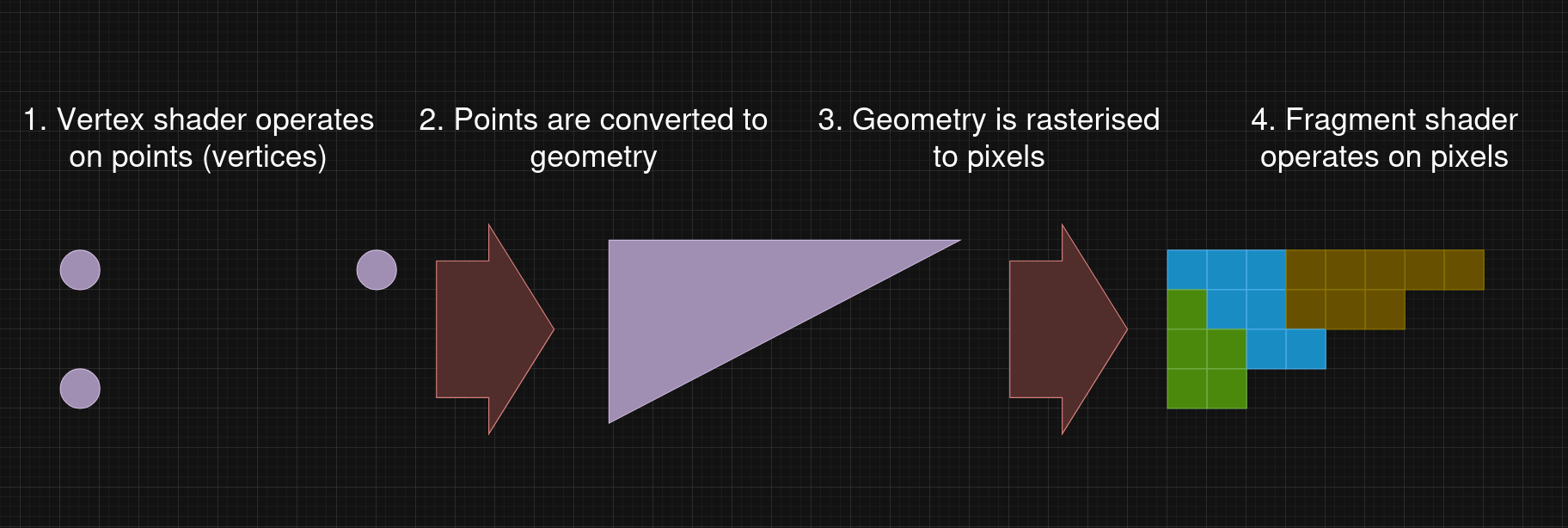
At that point, we can successfully apply a colour to the screen, which is a useful milestone, but not particularly visually interesting. Now we need to work out where best to extend this to make it look beautiful.
There is a risk though, because everything now that we add could potentially slow things down. To keep rendering snappy and smooth, we need to be economical in our rendering - doing as much as possible with as little as possible.
gl_FragCoord
A Fragment Shader's job is to provide a color for the current pixel being rasterized.
With the minimal set up, the fragment shader already gives us a chance to decide what colour to display for every pixel on the screen. Typically in a fragment shader you'd be looking up values from textures or calculating lighting and shadows.
Inside the fragment shader we get a variable available to us for free: gl_FragCoord
Available only in the fragment language, gl_FragCoord is an input variable that contains the window relative coordinate (x, y, z, 1/w) values for the fragment.
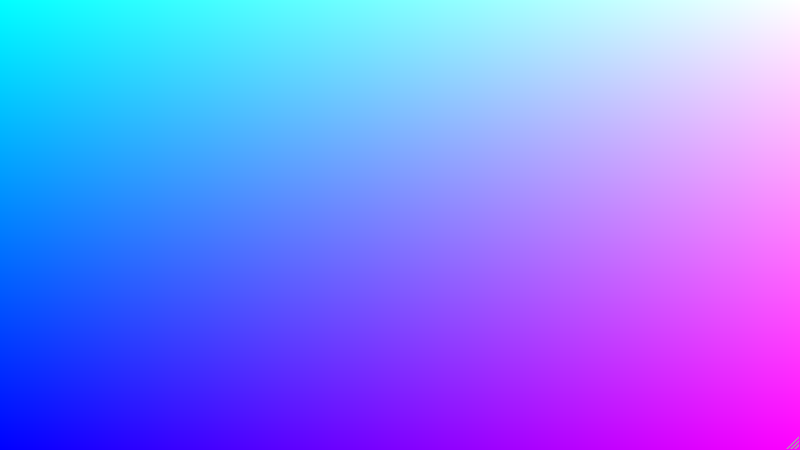
As we progress across the screen, from bottom to top and left to right, the x and y components of gl_FragCoord will increase respectively. Manipulating these values will form the basis of everything we do inside this fragment shader.
Shader programming
I am by no means an expert at shader programming, but I know enough of the syntax now to be dangerous. These are some of my highlights and lowlights to give you a feeling for it, and maybe make the examples a bit clearer.
In GLSL (the WebGL shader programming language), you work with vectors a lot. Positions are vectors, colours are vectors, vectors are (unsurprisingly) vectors. Fortunately creating vectors is easy because the constructors are super flexible.
// Creating vectors from floats.
vec2 source = vec2(1.0, 2.0);

// Creating vectors from vectors.
vec3 destination = vec3(source, 3.0);
Accessing vectors is equally simple, through syntax known as "Swizzles".
vec2 source = vec2(1.0, 2.0);

// The same as vec3(source.y, source.x, source.y)
vec2 twoOneTwo = source.yxy;
Many of the built-in functions will also happily accept vectors just as readily as they will accept single values. One example we'll see in this post is mix which will happily blend between single values or vectors without any complaints.
Any time you see number literals expressed with a decimal point e.g. 5.0, the decimal point implies this will be a floating point value, and without it we would get an integer. This is not super uncommon in programming languages, but I do find it obtuse when working with shaders. 100% of the number values used in this post are floats, occasionally creating accidental integers is frustrating.
Finally, debugging shader output is not as easy as debugging typical code. Tools exist, but generally shader pipelines and logic running on the CPU are harder to inspect. In practice, the easiest way to see what is happening is to cram values into the output colour channels and render your debug output to the screen. You'll see this throughout the post - the grayscale gradients are similar to the debugging outputs I used when building the shader.
If you're interested to know more, I definitely recommend (WebGL Fundamentals)[https://webglfundamentals.org], and the WebGL2 and WebGPU equivalent websites for more recent variants. But with that out of the way, let's start painting on the <canvas>...
Squares
Given some XY values as input, if we wanted to draw some little boxes on the screen, a basic fragment shader implementation might look something like this:
precision mediump float;

void main() {
  float squareGap = 10.0;
  float squareSize = 5.0;

  float wrappedXPosition = mod(gl_FragCoord.x, squareSize + squareGap);
  float wrappedYPosition = mod(gl_FragCoord.y, squareSize + squareGap);

  if (wrappedXPosition <= squareSize && wrappedYPosition <= squareSize) {
    gl_FragColor = vec4(1.0, 1.0, 1.0, 1.0);
  } else {
    gl_FragColor = vec4(0.0, 0.0, 0.0, 1.0);
  }
}
You can see in the simple example we are already using a built-in function: mod(x, y) which computes x modulo y, similar to the x % y operator in most programming langugaes. Effectively, instead of one continuous range of values crossing the screen, this gives us some smaller repeating values which wrap around, and allow us to repeat our square multiple times.
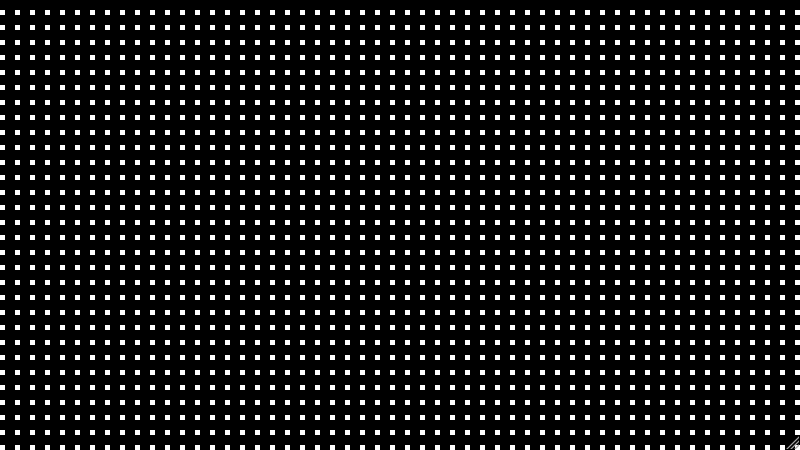
The GPU which handles our shader function will work a bit differently to a typical CPU. GPUs are built process data in a massively parallel way - instead of a handful of high powered cores you can instead expect thousands of much smaller cores.
One thing these GPU cores don't handle particularly well is brancing and conditionals. If we can find a way to express this logic without the if/else branch, and instead only use maths and GLSL built-ins then our code will perform much better.
Fortunately, there is another built-in function which can help us draw these squares without using an if/else: step(edge, x).
step generates a step function by comparing x to edge.
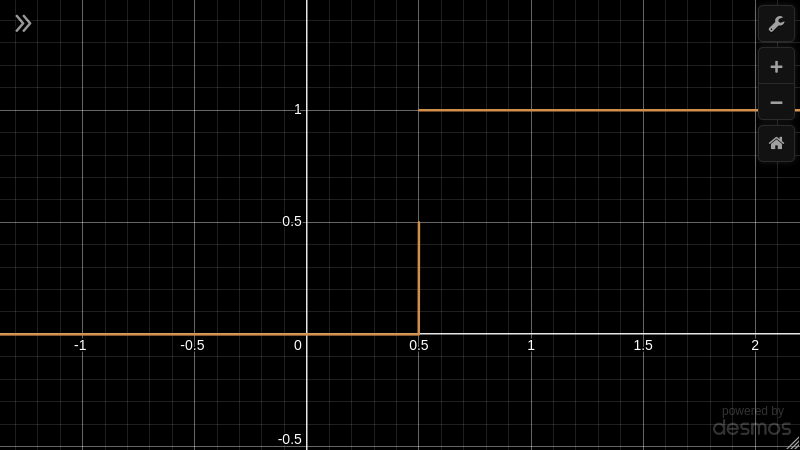
Using a combination of step() and mod(), we can create a series along each axis which switches between 1 and 0. By multiplying those values together, we achieve the same result as before, while avoiding any expensive if/else conditions.
precision mediump float;

void main() {
  float squareGap = 10.0;
  float squareSize = 5.0;

  float repeatSize = squareSize + squareGap;

  // For each mod(15) pixels:
  // - Proceed 10 pixels at a value of 0.
  // - Then step up to a value of 1 for the remaining 5 pixels.
  float scaleX = step(squareGap, mod(gl_FragCoord.x, repeatSize));
  float scaleY = step(squareGap, mod(gl_FragCoord.y, repeatSize));

  // Multiply the X and Y values together, only leaving values
  // of 1 where both X and Y functions are 1.
  float isSquare = scaleX * scaleY;

  gl_FragColor = vec4(isSquare, isSquare, isSquare, 1.0);
}
It is worth taking a moment to recap the result here. We have only sent 1 rectangle (composed of 2 triangles) to the GPU, the one which fills the entire screen. However, using nothing but built-in functions and maths, we have managed to render a full screen of squares.
With that said, we will still need to be careful about what goes into this fragment shader. The logic does run for every pixel on the screen - which is inevitably going to be a lot of times. If our fragment shader function becomes expensive then we could end up spoiling the performance.
This set-up, where structure our rendering logic along the lines of "for each pixel, work out what colour it should be" is known as Backwards Rendering - and a similar flow is used for ray tracing (which is notoriously resource hungry).
Forwards Rendering and variants like Deferred Rendering are the more common flows for modern 3d graphics applications like games, where the logic is structured as: "here's all my stuff, work out which pixels it occupies".
Gradients
Squares are cool and all, but if we will be using this as a background then how about we add some colour? For the next challenge, lets add a gradient which goes from black to red to purple that covers the entire screen vertically from top to bottom.
Covering the screen throws a slight spanner in the works at the moment. We have the gl_FragCoord built-in which tells us the position of the pixel we are currently working on, but the web browser we are rendering to could be any size, so we can't hard-code any fixed sizes. We need a way to work out whether we're at the top, middle, or bottom, regardless of how big the screen is.
WebGL doesn't provide a built-in which would help us here. Instead, we will need to provide some supporting data about the total size of the screen ourselves, in the form of a u_resolution uniform. By dividing gl_FragCoord by u_resolution we figure out how far we are along the screen on either axis, as a value from 0 to 1.
precision mediump float;

uniform vec2 u_resolution;

void main() {
  vec2 screenPercentage = gl_FragCoord.xy / u_resolution.xy;

  float topToBottom = screenPercentage.y;

  gl_FragColor = vec4(topToBottom, topToBottom, topToBottom, 1.0);
}

The gradient will be laid out something like this:
| Distance along gradient | What is rendered |
|---|---|
| 0% | Only Colour A. |
| 0% to 50% | Blending from Colour A to Colour B. |
| 50% | Only Colour B. |
| 50% to 100% | Blending from Colour B to Colour C. |
| 100% | Only Colour C. |
There are 2 before-unseen built-ins that will be useful here:
mix(x, y, a)performs linear interpolation.smoothstep(edgeA, edgeB, amount)performs hermite interpolation.
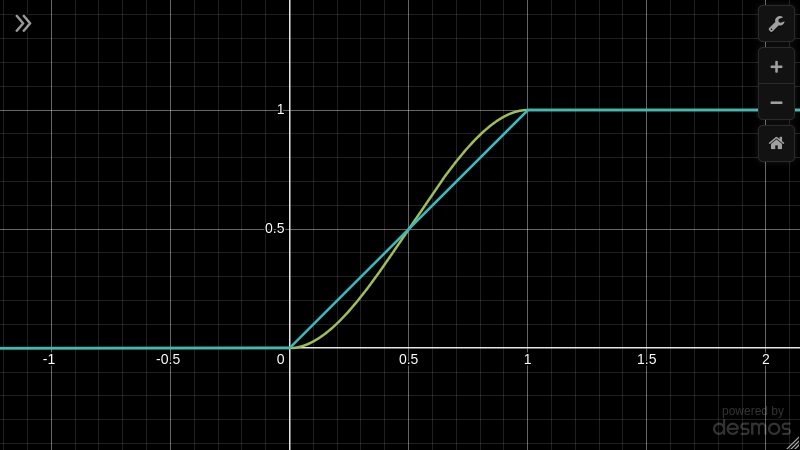
If we pass our stops and vertical screen position values into the smoothstep function, we can go from a linear gradient spanning the entire height of the page, to one which smoothly blends between our stops.
float bottomToTop = 1.0 - topToBottom;

float stop1 = 0.0;
float stop2 = 0.5;

float stepped = smoothstep(stop1, stop2, bottomToTop)

gl_FragColor = vec4(stepped, stepped, stepped, 1.0);

In this top region we now have values which go from 0 up to 1, and passing them to mix will let us blend between the two colours. For example:
mix(green, blue, 0)would returngreen.mix(green, blue, 1)would returnblue.mix(green, blue, 0.5)would return an even mix ofgreenandblue.
vec3 darkRed = vec3(0.41, 0.0, 0.0);
vec3 red = vec3(0.9, 0.0, 0.0);

float stop1 = 0.0;
float stop2 = 0.5;

vec3 gradientTop = mix(darkRed, red, smoothstep(stop1, stop2, bottomToTop));

gl_FragColor = vec4(gradientTop, 1.0);

Now that we have figured out the first part of the gradient, we can simply repeat the process for the bottom half. One thing to look out for here is that we create the top section of the gradient first (involving the first two colours), and then pass that gradient as an input to the bottom section of the gradient.
// The complete gradient shader:

precision mediump float;

uniform vec2 u_resolution;

void main() {
  vec2 screenPercentage = gl_FragCoord.xy / u_resolution.xy;

  float topToBottom = screenPercentage.y;
  float bottomToTop = 1.0 - topToBottom;

  vec3 darkRed = vec3(0.41, 0.0, 0.0);
  vec3 red = vec3(0.9, 0.0, 0.0);
  vec3 purple = vec3(0.50, 0, 0.20);

  float stop1 = 0.0;
  float stop2 = 0.5;
  float stop3 = 1.0;

  vec3 gradientPartial = mix(darkRed, red, smoothstep(stop1, stop2, bottomToTop));
  vec3 gradient = mix(gradientPartial, purple, smoothstep(stop2, stop3, bottomToTop));

  gl_FragColor = vec4(gradient, 1.0);
}

The power of 0 and 1
Ranges between 0 and 1 have been popping up repeatedly, and they will continue to do so as we add to the fragment shader. Values within this range have a few benefits:
- If we create some "helper" values in this range (like our screen position representation), then it is easy to reuse them in different contexts by multiplying them into the desired output range.
- There are a lot of functions (
mix,smoothstep,step) which work most naturally when operating on values between 0 and 1. - You can safely multiply values together. For inputs between 0 and 1, the output will also fall in the same range. This will come in handy later on, when we begin combining together different parts of the shader.
- Any time you have zeroes in your data you effectively "turn off" parts of the shader, as operations on 0 often return 0.
- Any time you have values clamped to 0 or 1 (like we saw with the squares) you can think of them as booleans. Multiplying them together functions as a boolean
ANDoperation.1 - Xfunctions like a booleanNOToperation. WithANDandNOTavailable, you can create every other boolean opeation. - At the end of the function we pass values in this 0 to 1 range out as output, representing the RGBA colour channels.
Ultimately, using values like this helps us satisfy the constraints laid out earlier: We can have one function using simple operations which runs quickly for each pixel without branching.
Waves Over Time
Everything we have applied to the screen so far has been quite uniform and static. We can stick a linear gradient over the whole screen, or fill the whole screen with squares. Next lets add some variety, texture and movement.
Trigonometry function are one tool in the GLSL toolbox we can reach for. Simple math functions like sin() are periodic and repetitive, but can form the basis of some slightly more interesting patterns.
The example below shows sin(gl_FragCoord.x), running across the screen horizontally. The extra logic is we do some mapping on the inputs and outputs:
- By scaling the input, we can change the period of the sine wave.
sin()returns values between -1 and 1, so these need to be remapped.
precision mediump float;

void main() {
  float value = sin(gl_FragCoord.x * 0.1);
  float scaledValue = (value + 1.0) * 0.5;
  gl_FragColor = vec4(scaledValue, scaledValue, scaledValue, 1.0);
}
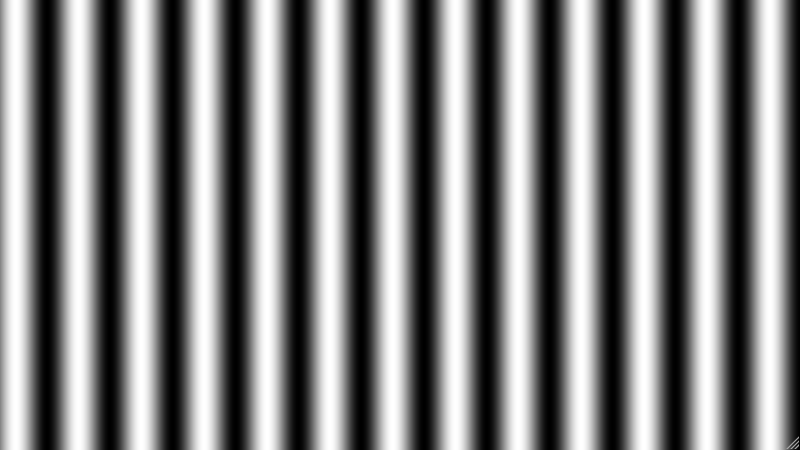
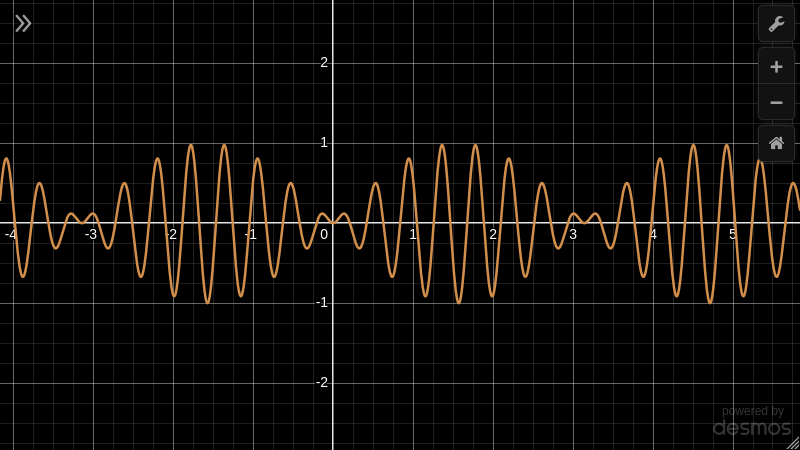
A single sine wave isn't much to look at on its own, but we can solve that by adding... more sine waves. By scaling one by another, we get a more interesting pattern.
precision mediump float;

void main() {
  float valueA = sin(gl_FragCoord.x * 0.07);
  float valueB = sin(gl_FragCoord.x * 0.05);
  float combined = valueA * valueB;
  float scaledValue = (combined + 1.0) * 0.5;
  gl_FragColor = vec4(scaledValue, scaledValue, scaledValue, 1.0);
}
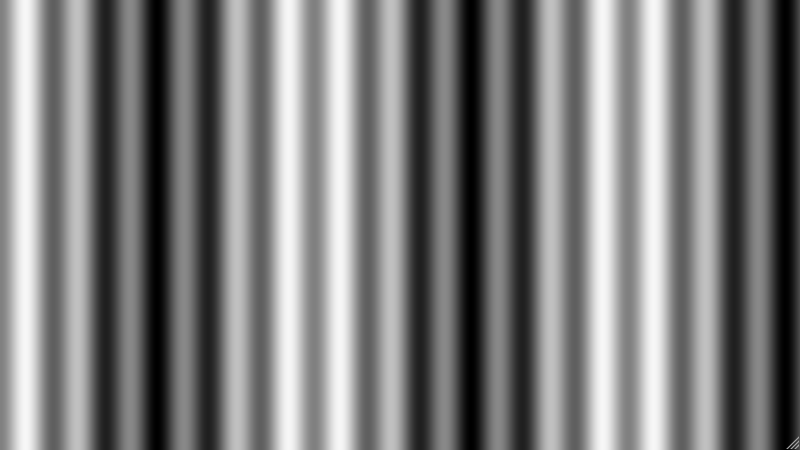
Now lets add some movement. I chose to do this by adding another uniform input to the shader: a u_minute floating point value which increases from 0 to 1 over the course of a minute. Using this to adjust the input to sin() creates an effect where the waves are sliding across the screen.
By adjusting the speed, period and direction of these sine waves, you can create an effect which looks like smooth rhythmic pulsing rather than the repetitive plain building blocks.
precision mediump float;

uniform float u_minute;
uniform vec2 u_resolution;

void main() {
  vec2 screenPercentage = gl_FragCoord.xy / u_resolution.xy;

  float leftToRight = screenPercentage.x;

  float pulseSineA = sin((leftToRight - (u_minute * 10.0)) * 5.0);
  float pulseSineB = sin((leftToRight - (u_minute * -3.0)) * 20.0);
  float verticalPulseRaw = pulseSineA * pulseSineB;
  float verticalPulseScaled = (verticalPulseRaw + 1.0) * 0.5;
  gl_FragColor = vec4(verticalPulseScaled, verticalPulseScaled, verticalPulseScaled, 1.0);
}
Note that I've introduced another helper to support the calculation here, scaling gl_FragCoord to the range 0 to 1 to make the calculations a bit easier to work with.
Combining the different parts
So far we have created a few different elements:
- A screen full of squares.
- A linear gradient.
- Some pulsating waves.
There's enough here now that we can combine it into something cohesive. This is the code I ended up with:
float bottomSection = smoothstep(0.2, 1.0, bottomToTop);

float bottomVerticalPulse = mix(0.0, verticalPulseScaled, bottomSection);

float bottomSquares = mix(0.0, isSquare, bottomSection);
float pulseBottomSquares = bottomSquares * verticalPulseScaled;

vec3 combined = gradient + (bottomVerticalPulse * 0.2 * vec3(1.0, 0.5, 0.0)) + (pulseBottomSquares * 0.3);
The gist is:
- The background sits behind everything.
- The pulsing sines are strongest at the bottom of the screen, fading out towards the top. This is supported by
bottomSection, which is effectively another vertical gradient. - Those fading sines add a bit of colour, but they also impact the visibility of the squares.
All together, that gives us a more interesting result:
Circling
The goal at the beginning was to generate something we could use as a snazzy background, to enhance whatever we're displaying on top, so lets give it a go. I've added a picture of us, now that we've learnt some stuff about shaders:

It looks better than it would normally, but it doesn't quite spark joy yet. So how can we push it a bit further? Everything we have developed so far has been structured horizontally or vertically, but what if we started trying to think in terms of a circle?
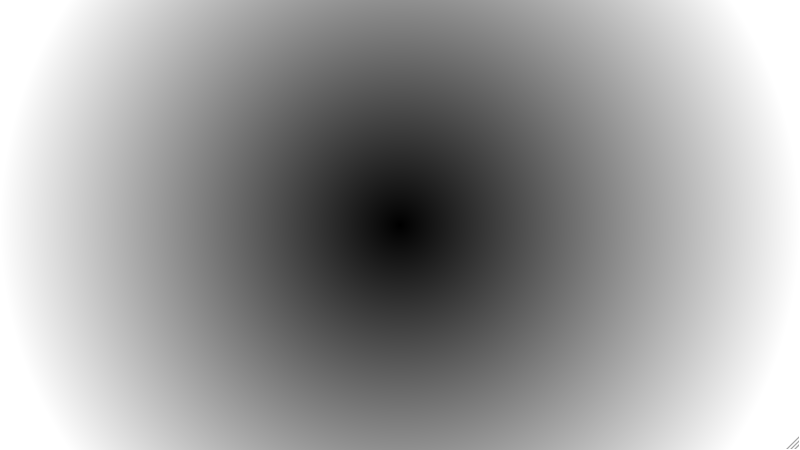
To enable this, we could do with some new helper gradients to build on top of. First it would be useful to know how far we are away from the center of the screen. This is actually relatively simple because our uniform u_resolution tells us the total size of the screen. If we half the x and y components, we find out where the center would be. We can then use pythagoras to find out the distance between the center and the pixel we're currently working on (via gl_FragCoord).
Conventiently we get some help from GLSL here as the built-in distance() performs the disance calculation for us, so we don't need to run pythagoras ourselves. Unfortunately there is a bit of numerical legwork we can't avoid though: Doing a straight distance calculation between the current pixel and the center gives values which are outside our favourite 0 to 1 range. I tuned the output so that we have nice 0 values in the center and 1 values at whichever edge is furthest away.
vec2 center = u_resolution / 2.0;
float maxSize = max(center.x, center.y);
float radiusRaw = distance(center, gl_FragCoord.xy);
float radius = clamp(radiusRaw / maxSize, 0.0, 1.0);
gl_FragColor = vec4(radius, radius, radius, 1.0);
There is another gradient to whip up that I'll need for the later steps: One which goes around the circle - sometimes known as a conic gradient. If that doesn't quite make sense, perhaps this awful diagram will explain a bit what I mean:
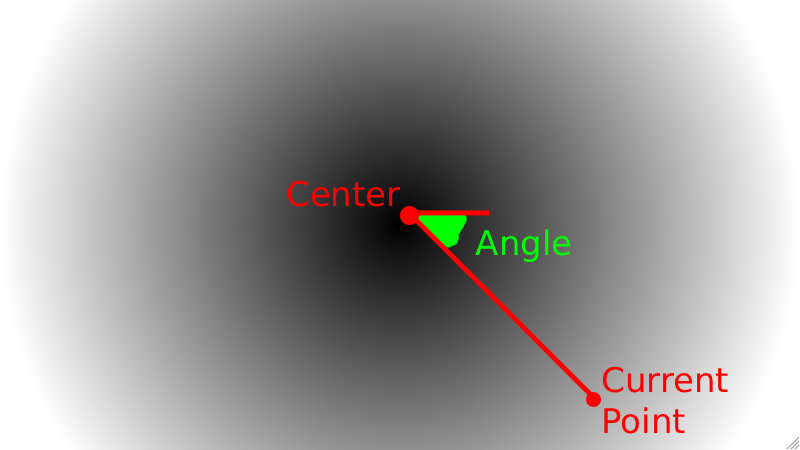
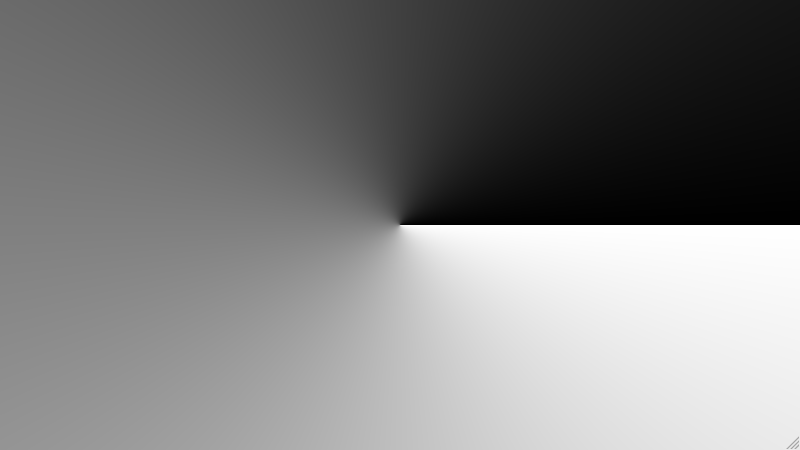
The trigonometry built-in we need for this calculation is atan, and again we do our little dance to get the values in the nice range from 0 to 1.
vec2 center = u_resolution / 2.0;
vec2 vectorFromCenter = center - gl_FragCoord.xy;
float angleFromCenter = atan(vectorFromCenter.y, vectorFromCenter.x);
float conic = (angleFromCenter + pi) / tau;
gl_FragColor = vec4(conic, conic, conic, 1.0);
Sunbeams
Now that we have those circular foundations we can use them for something practical.
The first thing we did at the start of this post was to make some little boxes, and we did that by taking the full screen gradients and breaking them up into smaller chunks. Let's try something similar around the circle.
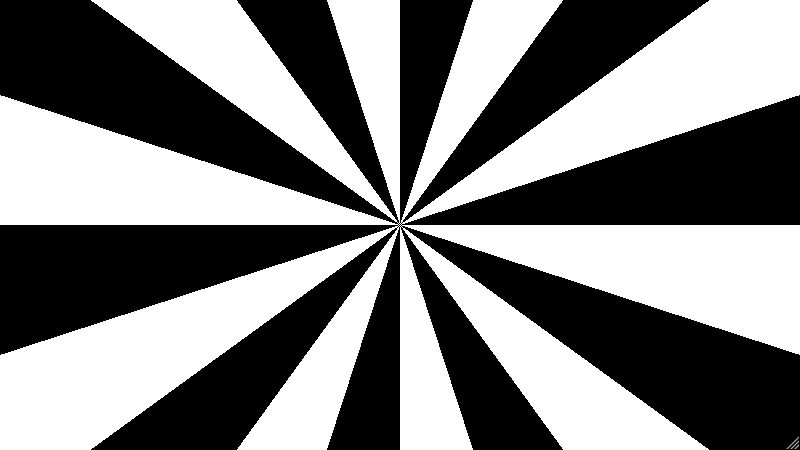
float beams = step(0.05, mod(conic, 0.1));
gl_FragColor = vec4(beams, beams, beams, 1.0);
Instead of the conic gradient rotating all the way around the circle from 0 to 1, we break it up into 10 sections from 0 to 0.1. In each of those sections, we map anything below 0.05 to 0, and everything else gets bumped up to 1. The end result is 10 black and white stripes bursting out from the center.
We can mix in the radial graidient too, by multiplying them together.
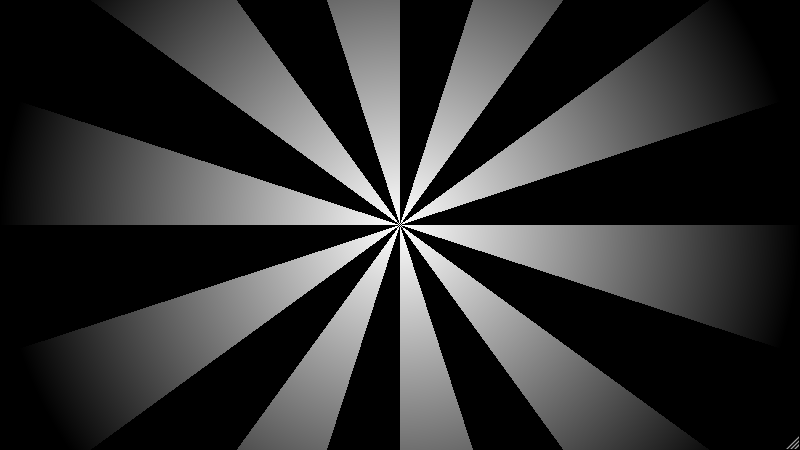
To make the whole thing spin, we can re-use the u_minute uniform to offset the conic angles and slide around the circle.
float beams = step(0.05, mod(conic + (u_minute * 2.0), 0.1));
float burst = beams * (1.0 - radius);
gl_FragColor = vec4(burst, burst, burst, 1.0);
When we were working with our sine waves, we added variety by combining multiple waves running with different sizes and speeds. We can do the same thing here - multiplying 2 copies together to make the effect evolve over time.
float beamsA = step(0.05, mod(conic + (u_minute * 2.0), 0.1));
float burstA = beamsA * (1.0 - radius);

float beamsB = step(0.05, mod(conic + (u_minute * 3.0), 0.15));
float burstB = beamsB * (1.0 - radius);

float bursts = burstA * burstB;
gl_FragColor = vec4(bursts, bursts, bursts, 1.0);
I ended up adding two of these to the shader, each with some different settings and tints.
Finishing touches
The last elements use techniques we have already seen, so we can breeze through them quickly.
I added a subtle gradient from the subject out towards the edge of the screen. This fades in and out over time to give a glowing effect. It doesn't look particularly impressive on its own, but it does tie in nicely to the rest of the elements.
float shadowInner = 0.25;
float shadowOuter = 0.5;
float shadowAmount = radius - shadowInner;
float shadow = 1.0 - clamp(shadowAmount / shadowOuter, 0.0, 1.0);
float shadowComponent = (sin(u_minute * 100.0) + 1.0) * 0.1;
vec3 shadowColor = shadow * vec3(shadowComponent, shadowComponent, shadowComponent);
I also added in this we have a pulsing ring. This uses a couple of step function calls to mark areas inside and outside a circle. By multiplying those together, we are left with just the places where they overlap, which is a ring.
The radius and opacity of this ring can be animated over time, but time is passed through smoothstep() so that it looks like the ring is fading away as it gets stretched out.
float ringExpansion = mod(u_minute, 0.04) * 25.0;
float ringPhase = smoothstep(0.0, 1.0, ringExpansion);
float ringRadius = ringPhase * 0.8;
float ringInside = step(ringRadius, radius);
float ringThickness = 0.01;
float ringOutside = 1.0 - step(ringRadius + ringThickness, radius);
float ring = ringInside * ringOutside * (1.0 - ringPhase);
The final result
Tying everything together, here's what I've ended up with:
If you want to load it up and try it out, you can find it online here.
I've added 2 chunks of text to the page to help assess it against the initial goals:
- First, an FPS counter showing how quickly we're managing to render each frame.
- Second, some other miscellaneous bits of text. The content isn't really important, what matters is that we can validate our shader performs well when being composited with other UI elements, rather than only testing it is isolation.
At this point, the main thing left to do is to test against a variety of devices including some old crusty iOS and Android phones, to validate that it performs as well as I hoped it would.
Even though our rendering pipeline is minimal, there is still some space for optimisation inside the shader:
- The number of divisions and calls to built-in functions could be reduced, as they could add up to be quite expensive.
- Many calculations do not need to be done per-pixel, and could be offloaded to run in the vertex shader or CPU.
Finally, we could always just add more stuff. It would be interesting to try adding some particles to the scene, staying within the performance goals originally set. The background becomes less subtle with every addition, but the results are looking good so why stop now.
For anyone following along, here's my complete fragment shader code incorporating everything from the post:
precision mediump float;

uniform float u_minute;
uniform vec2 u_resolution;

void main() {
  // Utilities -----------------------

  float pi = 3.1415926535897932384626433832795;
  float tau = pi * 2.0;

  vec2 screenPercentage = gl_FragCoord.xy / u_resolution.xy;

  // 1 at top of screen, 0 at bottom.
  float topToBottom = screenPercentage.y;
  // 0 at top of screen, 1 at bottom.
  float bottomToTop = 1.0 - topToBottom;
  // 0 at left of screen, 1 at right.
  float leftToRight = screenPercentage.x;

  float bottomSection = smoothstep(0.2, 1.0, bottomToTop);

  vec2 center = u_resolution / 2.0;
  float maxSize = max(center.x, center.y);
  float radiusRaw = distance(center, gl_FragCoord.xy);
  float radius = clamp(radiusRaw / maxSize, 0.0, 1.0);

  vec2 vectorFromCenter = center - gl_FragCoord.xy;
  float angleFromCenter = atan(vectorFromCenter.y, vectorFromCenter.x);
  float conic = (angleFromCenter + pi) / tau;

  // Background gradient -----------------------

  vec3 darkRed = vec3(0.41, 0.0, 0.0);
  vec3 red = vec3(0.9, 0.0, 0.0);
  vec3 purple = vec3(0.50, 0, 0.20);

  float stop1 = 0.0;
  float stop2 = 0.5;
  float stop3 = 1.0;

  vec3 gradientPartial = mix(darkRed, red, smoothstep(stop1, stop2, bottomToTop));
  vec3 gradient = mix(gradientPartial, purple, smoothstep(stop2, stop3, bottomToTop));

  // Squares -----------------------

  float squareGap = 10.0;
  float squareSize = 5.0;

  float scaleX = step(squareGap, mod(gl_FragCoord.x, squareSize + squareGap));
  float scaleY = step(squareGap, mod(gl_FragCoord.y, squareSize + squareGap));
  float isSquare = scaleX * scaleY;
  float bottomSquares = mix(0.0, isSquare, bottomSection);

  // Pulsating -----------------------

  float pulseSineA = sin((leftToRight - (u_minute * 10.0)) * 5.0);
  float pulseSineB = sin((leftToRight - (u_minute * -3.0)) * 20.0);
  float verticalPulseRaw = pulseSineA * pulseSineB;
  float verticalPulseScaled = (verticalPulseRaw + 1.0) * 0.5;

  // Combining background -----------------------

  float bottomVerticalPulse = mix(0.0, verticalPulseScaled, bottomSection);
  float pulseBottomSquares = bottomSquares * verticalPulseScaled;
  vec3 combined = gradient + (bottomVerticalPulse * 0.2 * vec3(1.0, 0.5, 0.0)) + (pulseBottomSquares * 0.3);

  // Sunbursts -----------------------

  float burstSpinSpeedA = 2.0;
  float burstSpinStrengthA = 1.0;
  float burstSpinRadiusA = 0.8;
  float beamsA = step(1.0, mod((conic + (u_minute * burstSpinSpeedA)) * 20.0, 2.0));
  float burstA = clamp(beamsA * (burstSpinRadiusA - radius), 0.0, 1.0);
  float burstStrengthA = burstA * burstSpinStrengthA;

  float burstSpinSpeedB = 3.0;
  float burstSpinStrengthB = 1.0;
  float burstSpinRadiusB = 0.8;
  float beamsB = step(1.0, mod((conic + (u_minute * burstSpinSpeedB)) * 20.0, 3.0));
  float burstB = clamp(beamsB * (burstSpinRadiusB - radius), 0.0, 1.0);
  float burstStrengthB = burstB * burstSpinStrengthB;

  float burstSpinSpeedC = -4.0;
  float burstSpinStrengthC = 1.0;
  float burstSpinRadiusC = 0.7;
  float beamsC = step(1.0, mod((conic + (u_minute * burstSpinSpeedC)) * 20.0, 3.0));
  float burstC = clamp(beamsC * (burstSpinRadiusC - radius), 0.0, 1.0);
  float burstStrengthC = burstC * burstSpinStrengthC;

  float burstSpinSpeedD = -3.0;
  float burstSpinStrengthD = 1.0;
  float burstSpinRadiusD = 0.7;
  float beamsD = step(1.0, mod((conic + (u_minute * burstSpinSpeedD)) * 20.0, 5.0));
  float burstD = clamp(beamsD * (burstSpinRadiusD - radius), 0.0, 1.0);
  float burstStrengthD = burstD * burstSpinStrengthD;

  float combinedBurstAB = burstStrengthA * burstStrengthB;
  float combinedBurstCD = burstStrengthC * burstStrengthD;

  vec3 combinedBurstColor = vec3(combinedBurstAB, combinedBurstAB * 0.8, combinedBurstAB) + vec3(combinedBurstCD, combinedBurstCD, combinedBurstCD * 0.8);

  // Glow -----------------------

  float shadowInner = 0.25;
  float shadowOuter = 0.5;
  float shadowAmount = radius - shadowInner;
  float shadow = 1.0 - clamp(shadowAmount / shadowOuter, 0.0, 1.0);
  float shadowComponent = (sin(u_minute * 100.0) + 1.0) * 0.1;
  vec3 shadowColor = shadow * vec3(shadowComponent, shadowComponent, shadowComponent);

  // Rim -----------------------

  float ringExpansion = mod(u_minute, 0.04) * 25.0;
  float ringPhase = smoothstep(0.0, 1.0, ringExpansion);
  float ringRadius = ringPhase * 0.8;
  float ringInside = step(ringRadius, radius);
  float ringThickness = 0.01;
  float ringOutside = 1.0 - step(ringRadius + ringThickness, radius);
  float ring = ringInside * ringOutside * (1.0 - ringPhase);

  // End -----------------------

  vec3 fullBackground = combined + combinedBurstColor + shadowColor + ring;
  gl_FragColor = vec4(fullBackground, 1.0);
}
- Project
- TypeScript
- Image Processing
- HTML5 Canvas